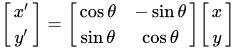
Anesthetize wrote: » What have you tried so far? Can you share your code?
terry.forward(200)
terry.left(135)
terry.forward(142)
terry.left(90)
terry.forward(142)
Talisman wrote: » The formula you need is : a^2 = b^2 + c^2 or (a * a) = (b * b) + (c * c) For an isosceles triangle b = c. (a * a) = 2 * (b * b) => (a * a) / 2 = (b * b) Using your initial length of 200 for a (200 * 200) / 2 = (b * b) (b * b) = 40000 / 2 = 20000 b = sqrt( 20000 ) = 141.421356 So try the following: terry.forward(200) terry.left(135) terry.forward(142) terry.left(90) terry.forward(142)
Idleater wrote: » I know you prefixed this with n00b, but step 1 for noobs is learning to Google. You asked the correct specific question: http://lmgtfy.com/?q=Python+square+root
tommyboy26 wrote: » Thanks for that it work. but on a side note is there a way to use the square root function in python?
Python 3.6.3 (default, Oct  4 2017, 06:09:05)
[GCC 4.2.1 Compatible Apple LLVM 8.0.0 (clang-800.0.42.1)] on darwin
Type "help", "copyright", "credits" or "license" for more information.
>>> import math
>>> sqrt(20000)
Traceback (most recent call last):
  File "<stdin>", line 1, in <module>
NameError: name 'sqrt' is not defined
>>> math.sqrt(20000)
141.4213562373095
Python 3.6.3 (default, Oct  4 2017, 06:09:05)
[GCC 4.2.1 Compatible Apple LLVM 8.0.0 (clang-800.0.42.1)] on darwin
Type "help", "copyright", "credits" or "license" for more information.
>>> from math import sqrt
>>> math.sqrt(20000)
Traceback (most recent call last):
  File "<stdin>", line 1, in <module>
NameError: name 'math' is not defined
>>> sqrt(20000)
141.4213562373095
Python 3.6.3 (default, Oct  4 2017, 06:09:05)
[GCC 4.2.1 Compatible Apple LLVM 8.0.0 (clang-800.0.42.1)] on darwin
Type "help", "copyright", "credits" or "license" for more information.
>>> import math
>>> a = 200
>>> a2 = math.pow(a, 2)
>>> b2 = a2 / 2
>>> b = math.sqrt(b2)
>>> b
141.4213562373095
>>> math.ceil(b)
142
>>> math.ceil( math.sqrt( math.pow(a, 2) / 2 ) )
142
Talisman wrote: » You need to import the math module in your code before you call call sqrt(). Method #1 : import mathPython 3.6.3 (default, Oct 4 2017, 06:09:05) [GCC 4.2.1 Compatible Apple LLVM 8.0.0 (clang-800.0.42.1)] on darwin Type "help", "copyright", "credits" or "license" for more information. >>> import math >>> sqrt(20000) Traceback (most recent call last): File "<stdin>", line 1, in <module> NameError: name 'sqrt' is not defined >>> math.sqrt(20000) 141.4213562373095 Method #2 : from math import sqrt Only bind what you need from the module, i.e. the sqrt() function in this case.Python 3.6.3 (default, Oct 4 2017, 06:09:05) [GCC 4.2.1 Compatible Apple LLVM 8.0.0 (clang-800.0.42.1)] on darwin Type "help", "copyright", "credits" or "license" for more information. >>> from math import sqrt >>> math.sqrt(20000) Traceback (most recent call last): File "<stdin>", line 1, in <module> NameError: name 'math' is not defined >>> sqrt(20000) 141.4213562373095 As you can see from the excerpts above, the method you choose to use determines how you can call the function. It would be naive to think that the second method is better because you only want to import a single function because the entire math module is still imported but you don't have access to it. The only difference between the two statements is what name is bound; import math (method #1) binds the name math to the module (math -> sys.modules), while from math import sqrt (method #2) binds a different name, sqrt, which points directly at the function contained inside of the math module (sqrt -> sys.modules.sqrt). In general, method #1 is considered the best practise. There is no noticeable performance benefit in method #2 unless it is used in particular circumstances. Method #1 : math.sqrt() involves two look ups. First it has to look up math in the global namespace where it finds the module, then there is a look up for the attribute sqrt which is the function to be called. Method #2 : sqrt() involves a single look up. from math import sqrt has bound sqrt in the global namespace so the first look up finds the function. The only circumstance in which method #2 will offer a performance benefit is if the function was called in a loop that was being executed thousands of times. In your use case you definitely want to use method #1 because it gives you access to the full math module.Python 3.6.3 (default, Oct 4 2017, 06:09:05) [GCC 4.2.1 Compatible Apple LLVM 8.0.0 (clang-800.0.42.1)] on darwin Type "help", "copyright", "credits" or "license" for more information. >>> import math >>> a = 200 >>> a2 = math.pow(a, 2) >>> b2 = a2 / 2 >>> b = math.sqrt(b2) >>> b 141.4213562373095 >>> math.ceil(b) 142 Of course you can shorten this to a single line: >>> math.ceil( math.sqrt( math.pow(a, 2) / 2 ) ) 142
tommyboy26 wrote: » just looking at your code what version of python are you using?
Talisman wrote: » Python 3.6.3 on OS X installed using the Homebrew package manager.
 import turtle


terry = turtle.Turtle()
terry.hideturtle()

terry.speed(500)
win = turtle.Screen()
win.bgcolor("white")
win.screensize(1000, 1000)
[B]
terry.goto(0, 0)
terry.color("black", "white")
terry.shape("circle")
terry.shapesize(8, 20)
terry.stamp()
terry.pencolor("black")
[/B]

def circle():
    terry.begin_fill()
    terry.fillcolor("blue")
    terry.circle(20)
    terry.end_fill()


def circle2():
    terry.begin_fill()
    terry.fillcolor("red")
    terry.circle(20)
    terry.end_fill()


terry.penup()
terry.goto(40, 0)
terry.pendown()

circle()

terry.penup()
terry.goto(40, 25)
terry.pendown()

circle2()

terry.penup()
terry.goto(20, 35)
terry.pendown()

circle()


terry.penup()
terry.goto(-10, 40)
terry.pendown()

circle2()

terry.penup()
terry.goto(-40, 30)
terry.pendown()

circle()


terry.penup()
terry.goto(-40, 0)
terry.pendown()

circle2()

terry.penup()
terry.goto(-20, -30)
terry.pendown()

circle()

terry.penup()
terry.goto(0, -30)
terry.pendown()

circle2()

terry.penup()
terry.goto(30, -25)
terry.pendown()

circle()

terry.penup()
terry.goto(-12, 5)
terry.pendown()

circle()

terry.penup()
terry.goto(-10, 40)
terry.pendown()

circle()

terry.penup()
terry.goto(10, 5)
terry.pendown()

circle2()


win.exitonclick()
terry.goto(0, 0)
terry.color("black", "white")
terry.shape("circle")
terry.shapesize(8, 20)
[B]terry.tilt(30)[/B]
terry.stamp()
terry.pencolor("black")
You can use parametric equations: x=a cos(θ) y=b sin(θ) Where a is the radius on the horizontal axis, and b is the radius on the vertical axis. and θ is the number of radians that make up the angle
#loop between 0, 360 - degrees in circle
# turtle.goto(get_x_coord(), get_y_coord())
# define circle

asstamp = terry.stamp() # assign stamp id to variable and stamp

# I tried a few different methods of waiting here

terry.clearstamp(asstamp) # problem line
#parameter variables
fill_color = "yellow"
outline_color = "black"
x = 0
y = 0
angle = 45
stretch_wid = 20
stretch_len = 30
outline = 1

# t is for turtle!
t = Turtle(visible=False)

t.shape("circle")
t.shapesize(stretch_wid, stretch_len, outline)
t.color(fill_color, outline_color)
t.penup()
t.goto(x, y)
t.settiltangle(angle)
t.stamp()
pillphil wrote: » I had a method to get x and one to get y. x and y for each angle will get you the center of the electron on the elipse, then you can draw an electron at that point. I ran into some issues trying to animate the movement. The obvious thing to do seemed to be#loop between 0, 360 - degrees in circle # turtle.goto(get_x_coord(), get_y_coord()) # define circle asstamp = terry.stamp() # assign stamp id to variable and stamp # I tried a few different methods of waiting here terry.clearstamp(asstamp) # problem line But this didn't render the electron for long enough to appear on the screen. I tried a few waits, but it didn't seem to work. Removing the clearstamp produced a series of electrons around the ellipse, so I'm not sure what the solution to this is. I ended up adding each stamp to a queue and removing it on the next pass so it animates the next circle before it removes the previous.
# electron is a Turtle instance

# use pendown if you want to trace the orbit
electron.pendown()
# move the electron to (x, y)
electron.goto( x, y )
# show the electron
electron.showturtle()
import itertools

circular_iter = itertools.cycle(coords_list)

# get the starting position
start_pos = next(circular_iter)
# place the electron in the starting position
electron.goto( start_pos[0], start_pos[1] )

# infinite loop
for coord in circular_iter:
    # move the electron
    electron.goto( coord[0], coord[1] )
    # show the electron
    electron.showturtle()
pillphil wrote: » Ah, I didn't realise that the turtle became the shape you set, I thought it just drew the shape. Is there a way to render the circles transparent?
outline_col = "black"
fill_col = ""
shape = "circle"

el = Turtle()
el.hideturtle()
el.penup()
el.shape(shape)
el.color(outline_col, fill_col)
el.goto(x, y)
el.showturtle()
tommyboy26 wrote: » thanks for taking the time to reply:D
Talisman wrote: » Did you get it working for yourself?
# importing turtle graphics library
import turtle
# importing sin, pi, e math functions
from math import sin, pi, e
# creating a turtle object named terry
terry = turtle.Turtle()
# creating a turtle object named yertle
yertle = turtle.Turtle()
# creating a screen to show turtle graphics
win = turtle.Screen()
# setting screen back round color to yellow
win.bgcolor("yellow")
# enabling a user input to take in an integer number for pensize
pensize = win.numinput("", "Please pick a pensize from 1-3")
# linking integer value for pensize to object terry
terry.pensize(pensize)
# hiding the shape of the object yertle and moving it to top left of screen
yertle.hideturtle()
yertle.penup()
yertle.goto(-300, 250)
yertle.pendown()
# telling object yertle to write user instructions on screen and move down a line each time
yertle.write("Press the Q key to draw shape 1", move="true", align="left", font=("calibre", 10, "normal"))
yertle.penup()
yertle.goto(-300, 230)
yertle.pendown()
yertle.write("Press the W key to draw shape 2", move="true", align="left", font=("calibre", 10, "normal"))
yertle.penup()
yertle.goto(-300, 210)
yertle.pendown()
yertle.write("Press the E key to draw shape 3", move="true", align="left", font=("calibre", 10, "normal"))
yertle.penup()
yertle.goto(-300, 190)
yertle.pendown()
yertle.write("Press the A key to draw shape 4", move="true", align="left", font=("calibre", 10, "normal"))
yertle.penup()
yertle.goto(-300, 170)
yertle.pendown()
yertle.write("Press the R key to reset the screen", move="true", align="left", font=("calibre", 10, "normal"))


# defining the first shape
def harmonograph1():
    # these values set the frequency of the object
    f1 = 10
    f2 = 3
    f3 = 1
    f4 = 2
    # these values tell the object what value of pi to use when moving
    p1 = 0
    p2 = 0
    p3 = pi / 2
    p4 = 0
    # these values tell the object the rate of decay as it moves
    d1 = 0.039
    d2 = 0.006
    d3 = 0.00
    d4 = 0.0045
    # this value sets the time interval for the object
    t = 0
    # this value is for time x decay
    dt = 0.05
    # creating a loop to draw the shape
    for i in range(2500):
        # enabling the program to make a selection of color depending on where it is in the loop
        if i < 750:
            terry.color("red")
        else:
            terry.color("black")
        # sets the speed of the object
        terry.speed(0)
        # this is the maths that sets the objects position as it moves and draws the shape
        x1 = 100 * sin(f1 * t + p1) * e ** (-t * d1) + 100 * sin(f2 * t + p2) * e ** (-t * d2)
        y1 = 100 * sin(f3 * t + p3) * e ** (-t * d3) + 100 * sin(f4 * t + p4) * e ** (-t * d4)
        terry.setpos(x1, y1)
        t += dt


# defining the second shape using the same maths as shape 1 but with different values of frequency/pi/decay
def harmonograph2():
    f5 = 3.001
    f6 = 2
    f7 = 3
    f8 = 2
    p5 = 0
    p6 = 0
    p7 = pi/2
    p8 = 3*pi/2
    d5 = 0.004
    d6 = 0.0065
    d7 = 0.008
    d8 = 0.019
    t = 0
    dt = 0.05
    # creating loop to draw shape 2/ hide the object shape and set the pen color to red
    for i in range(2500):
        terry.hideturtle()
        terry.pencolor("red")
        x2 = 100 * sin(f5 * t + p5) * e ** (-t * d5) + 100 * sin(f6 * t + p6) * e ** (-t * d6)
        y2 = 100 * sin(f7 * t + p7) * e ** (-t * d7) + 100 * sin(f8 * t + p8) * e ** (-t * d8)
        terry.setpos(x2, y2)
        t += dt


# defining the 3rd shape using the same maths as shape 1 but with different values of frequency/pi/decay
def harmonograph3():
    f1 = 2
    f2 = 6
    f3 = 1.002
    f4 = 3
    p1 = pi/16
    p2 = 3*pi/2
    p3 = 13*pi/16
    p4 = pi
    d1 = 0.02
    d2 = 0.0315
    d3 = 0.02
    d4 = 0.02
    t = 0
    dt = 0.05
    # creating loop to draw shape 3/ hide the object shape and set the pen color to dark blue
    for i in range(1500):
        terry.hideturtle()
        terry.color("dark blue")
        x1 = 100 * sin(f1 * t + p1) * e ** (-t * d1) + 100 * sin(f2 * t + p2) * e ** (-t * d2)
        y1 = 100 * sin(f3 * t + p3) * e ** (-t * d3) + 100 * sin(f4 * t + p4) * e ** (-t * d4)
        terry.setpos(x1, y1)
        t += dt


# defining the 4th shape using the same maths as shape 1 but with different values of frequency/pi/decay
def harmonograph4():
    f1 = 2.01
    f2 = 3
    f3 = 3
    f4 = 2
    p1 = 0
    p2 = 7*pi/16
    p3 = 0
    p4 = 0
    d1 = 0.085
    d2 = 0.00
    d3 = 0.065
    d4 = 0.00
    t = 0
    dt = 0.05
    # creating loop to draw shape 4, hide the object shape and set the pen color to black
    for i in range(1500):
        terry.hideturtle()
        terry.pencolor("black")
        x1 = 100 * sin(f1 * t + p1) * e ** (-t * d1) + 100 * sin(f2 * t + p2) * e ** (-t * d2)
        y1 = 100 * sin(f3 * t + p3) * e ** (-t * d3) + 100 * sin(f4 * t + p4) * e ** (-t * d4)
        terry.setpos(x1, y1)
        t += dt


# creating a function to draw shape 1 on press of key Q by user
def q_key():
    harmonograph1()


# creating a function to draw shape 2 on press of key W by user
def w_key():
    harmonograph2()


# creating a function to draw shape 3 on press of key E by user
def e_key():
    harmonograph3()


# creating a function to draw shape 4 on press of key A by user
def a_key():
    harmonograph4()


# creating a function to reset screen on press of key R by user
# this function also rewrites the instructions for the user after the screen is reset
def r_key():
    win.resetscreen()
    yertle.hideturtle()
    yertle.penup()
    yertle.goto(-300, 250)
    yertle.pendown()
    yertle.write("Press the Q key to draw shape 1", move="true", align="left", font=("calibre", 10, "normal"))
    yertle.penup()
    yertle.goto(-300, 230)
    yertle.pendown()
    yertle.write("Press the W key to draw shape 2", move="true", align="left", font=("calibre", 10, "normal"))
    yertle.penup()
    yertle.goto(-300, 210)
    yertle.pendown()
    yertle.write("Press the E key to draw shape 3", move="true", align="left", font=("calibre", 10, "normal"))
    yertle.penup()
    yertle.goto(-300, 190)
    yertle.pendown()
    yertle.write("Press the A key to draw shape 4", move="true", align="left", font=("calibre", 10, "normal"))
    yertle.penup()
    yertle.goto(-300, 170)
    yertle.pendown()
    yertle.write("Press the R key to reset the screen", move="true", align="left", font=("calibre", 10, "normal"))
    # this part of the function keeps the pensize the same as the size chosen by user at the start of the program
    terry.pensize(pensize)


# enabling the key presses and linking them to the keys the user presses
win.onkey(q_key, "q")
win.onkey(w_key, "w")
win.onkey(e_key, "e")
win.onkey(a_key, "a")
win.onkey(r_key, "r")
# telling the program to listen for key presses
win.listen()
# enabling the sub processes to work while still letting the whole program work
win.mainloop()
import turtle
import math

import numpy

terry = turtle.Turtle()
terry.hideturtle()

electron_shape = [[turtle.Turtle(), 30], [turtle.Turtle(), 90], [turtle.Turtle(), 150]]

terry.speed(0)
win = turtle.Screen()
win.bgcolor("white")
win.screensize(1000, 1000)

terry.goto(0, 0)

# create orbit ellipses
for i in [30, 60, 60]:
    terry.color("black", "")
    terry.shape("circle")
    terry.shapesize(8, 20)
    terry.tilt(i)
    terry.stamp()
    terry.pencolor("black")


def circle():
    terry.begin_fill()
    terry.fillcolor("blue")
    terry.circle(20)
    terry.end_fill()


def circle2():
    terry.begin_fill()
    terry.fillcolor("red")
    terry.circle(20)
    terry.end_fill()


def electron():
    terry.begin_fill()
    terry.fillcolor("yellow")
    terry.circle(1)
    terry.end_fill()


def getx(a, theta):
    return a * math.cos(theta * 0.0174533)  # convert theta radian to degree


def gety(b, theta):
    return b * math.sin(theta * 0.0174533)


def rotate(x, y, theta):
    one = [[math.cos(theta * 0.0174533), -math.sin(theta * 0.0174533)], [math.sin(theta * 0.0174533), math.cos(theta * 0.0174533)]]
    two = [[x], [y]]
    return numpy.dot(one, two)


degrees = 30
counter = 1
while degrees < 360:
    terry.penup()
    terry.goto(getx(30, degrees), gety(30, degrees)-10)  # -10 moves the circles to the centre
    terry.pendown()

    if counter % 2 == 0:
        circle()
    else:
        circle2()

    degrees += 60
    counter += 1


terry.penup()
terry.goto(0, -10)
terry.pendown()
circle()
terry.penup()

for e in electron_shape:
    e[0].hideturtle()
    e[0].penup()
    e[0].shape("circle")
    e[0].shapesize(1)
    e[0].fillcolor('yellow')
    e[0].speed(0)

while True:
    for x in range(0, 360):
        for e in electron_shape:
            thing = rotate(getx(200, x), gety(80, x), e[1])
            e[0].penup()
            e[0].goto(thing[0][0], thing[1][0])
            e[0].pendown()

            e[0].showturtle()

win.exitonclick()
import itertools
import math
from tkinter import *
from turtle import ScrolledCanvas, RawTurtle, TurtleScreen

def linspace(a, b, n=100):
    """
    Generates a linearly spaced list
    y = linspace(x1,x2) returns a list of 100 evenly spaced points between x1 and x2.
    y = linspace(x1,x2,n) generates a list of n points. The spacing between the points is (x2-x1)/(n-1).
    :param a: start
    :param b: stop
    :param n: number of elements
    :return: list of floating point numbers
    """
    if n < 2:
        return b
    diff = (float(b) - a)/(n - 1)
    return [diff * i + a  for i in range(n)]

# create linearly spaced list for ellipses
SPACED = linspace(0, 2*math.pi, 100)

def fill_circle(x, y, color=None, radius=None, t=None):
    """
    Draws a circle with fill colour.
    :param x: centre of circle x coordinate
    :param y: centre of circle y coordinate
    :param color: fill colour
    :param radius: circle radius
    :param t: turtle instance
    :return: None
    """
    if color is None:
        color = "blue"
    if radius is None:
        radius = 15
    if t is None:
        global turtle
        t = turtle
    t.hideturtle()
    # move turtle
    t.penup()
    t.goto(x, y)
    # fill circle
    t.pendown()
    t.begin_fill()
    t.fillcolor(color)
    t.circle(radius)
    t.end_fill()

def draw_nucleus(nucleus):
    """
    Draws the circles which make up the nucleus of the animation.
    :param nucleus: a list of tuples (x, y, color) which defines the elements for the atom nucleus.
    :return: None
    """
    global turtle
    turtle.hideturtle()
    for el in nucleus:
        fill_circle(el[0], el[1], el[2])

def switch_list(a_list):
    """
    Splits a list of elements into two parts and swaps their order.
    :param a_list: a list
    :return: a list
    """
    half = len(a_list) // 2
    start = a_list[:half]
    end = a_list[half:]
    return [*end, *start]

def ellipse_coord(the,angle=45,radm=160,radn=90,x0=0,y0=0,cos=math.cos,sin=math.sin):
    """
    Returns tuple (x,y) for point on ellipse.
    :param the: length of line segment
    :param angle: angle
    :param radm: major axis length (m)
    :param radn: minor axis length (n)
    :param x0: x coordinate of centre of ellipse
    :param y0: y coordinate of centre of ellipse
    :param cos: cosine function
    :param sin: sine function
    :return: a tuple (x, y)
    """
    co, si = cos(angle), sin(angle)
    X = radm * cos(the) * co - si * radn * sin(the) + x0
    Y = radm * cos(the) * si + co * radn * sin(the) + y0
    return (X, Y)

def get_ellipse_path(angle, switch=False, spaced=SPACED):
    """
    Generates an iterable list of points on an ellipse.
    :param angle: launch angle for elliptical path
    :param switch: Boolean - determines whether halves of list should be swapped
    :param spaced: linearly spaced list of points
    :return: iterator with path coordinates
    """
    path = [ellipse_coord(val, angle) for val in spaced]
    if switch:
        path = switch_list( path )
    return path

def new_electron(color="grey", cnvs=None):
    """
    Creates a new electron (turtle instance).
    :param color: fill colour string value
    :param cnvs: canvas on which to create turtle
    :return: new turtle instance
    """
    shape="circle"
    outline="black"
    if cnvs is None:
        global canvas
        cnvs = canvas
    el = RawTurtle(cnvs)
    el.hideturtle()
    el.penup()
    el.shape(shape)
    el.shapesize(0.5,0.5)
    el.color(outline, color)
    return el

def show_electron_state(el, path):
    """
    Displays the electron at the next point on the path.
    :param el: turtle instance
    :param path: iterator with path coordinates
    :return: None
    """
    coord = next(path)
    el.goto( coord[0], coord[1] )
    el.showturtle()

def draw_elliptical_path(path, t=None):
    """
    Draw the path of the orbit.
    :param path: list of tuples
    :param t: turtle instace
    :return: None
    """
    if t is None:
        global turtle
        t = turtle
    t.hideturtle()
    t.penup()
    first = path[0]
    # position the turtle at the first coordinate
    t.goto(first[0], first[1])
    # begin drawing
    t.pendown()
    # draw each segment of the path
    for coord in path:
        t.goto(coord[0], coord[1])
    # complete the ellipse
    t.goto(first[0], first[1])
    # stop drawing
    t.penup()

def screenClicked(x,y):
    import os
    os._exit(1)

def main():
    screen.onclick(screenClicked)

    # draw the nucleus
    nucleus = [ (20, 15, "blue"), (0, 25, "red"), (-20, 15, "blue"), (-20, -10, "red"),
                (5, -25, "blue"), (20, -10, "red"), (0, 0, "blue") ]
    draw_nucleus(nucleus)

    # create the 3 elliptical electron paths
    path_configs = [(-5, True), (120, False), (260, False)]
    electron_paths = [get_ellipse_path(param[0], param[1]) for param in path_configs]

    # slight optimisation
    num_electrons = range(len(path_configs))

    # draw the electron paths
    for path in electron_paths:
        draw_elliptical_path(path)

    # create the electron orbits
    electron_orbits = [itertools.cycle(path) for path in electron_paths]

    # create the electron turtles
    electrons = [new_electron() for _ in num_electrons]

    # animate the electrons
    while True:
        for index in num_electrons:
            show_electron_state(electrons[index], electron_orbits[index])

root = Tk()
canvas = ScrolledCanvas(root)
canvas.pack(side=LEFT)
screen = TurtleScreen(canvas)
turtle = RawTurtle(canvas)
turtle.up()
turtle.hideturtle()
turtle.speed(0)
turtle.pencolor("black")
screen.bgcolor("white")
screen.screensize(300, 300)

main()
tommyboy26 wrote: » no i could not get it too work. so i had a chat with my lecturer and went a different route here is the code if anyone wants to run the program to see what it does there is alot :P:P
def xy_function(f1, p1, d1, f2, p2, d2, t):
    return 100 * sin(f1 * t + p1) * e ** (-t * d1) + 100 * sin(f2 * t + p2) * e ** (-t * d2)
x1 = xy_function(f1, p1, d1, f2, p2, d2, t)
y1 = xy_function(f3, p3, d3, f4, p4, d4, t)
def harmonograph(f, p, d, t=0, dt=0.05):
    for i in range(1500):
        terry.hideturtle()
        terry.pencolor("black")
        x1 = xy_function(f[0], p[0], d[0], f[1], p[1], d[1], t)
        y1 = xy_function(f[2], p[2], d[2], f[3], p[3], d[3], t)
        terry.setpos(x1, y1)
        t += dt
def harmonograph4():
    f1 = 2.01
    f2 = 3
    f3 = 3
    f4 = 2
    p1 = 0
    p2 = 7*pi/16
    p3 = 0
    p4 = 0
    d1 = 0.085
    d2 = 0.00
    d3 = 0.065
    d4 = 0.00
    t = 0
    dt = 0.05
    harmograph((f1,f2,f3,f4), (p1,p2,p3,p4), (d1,d2,d3,d4), t, dt)
f = (f1, f2, f3, f4)
p = (p1, p2, p3, p4)
d = (d1, d2, d3, d4)
harmonograph(f, p, d, t, dt)
def harmonograph4():
    # these values set the frequency of the object
    f = (2.01, 3, 3, 2)
    # these values tell the object what value of pi to use when moving
    p = (0, 7*pi/16, 0, 0)
    # these values tell the object the rate of decay as it moves
    d = (0.085, 0.00, 0.065, 0.00)
    # this value sets the time interval for the object
    t = 0
    # this value is for time x decay
    dt = 0.5
    harmonograph(f, p, d, t, dt)